Recording a procedure
- Choose the source and, where it applies, the monitor or the window to be followed.
- Fill in Title, Area/Author and Company/Client. Author and company are remembered for the next recordings.
- If you want, write the document Introduction. Left empty, the standard text shown as a hint in the field is used. Each line becomes a paragraph.
- Tick Hide typed values if the document must not show what was typed.
- Click Start recording and run the procedure as usual.
- Click Stop when you are done. In web mode, closing the browser also ends the recording.
While recording, the followed window gets a red "RECORDING" frame that tracks it across the screen. It never appears in the document screenshots. The frame disappears when you leave the chosen monitor: that is the sign nothing is being recorded there.
The floating toolbar
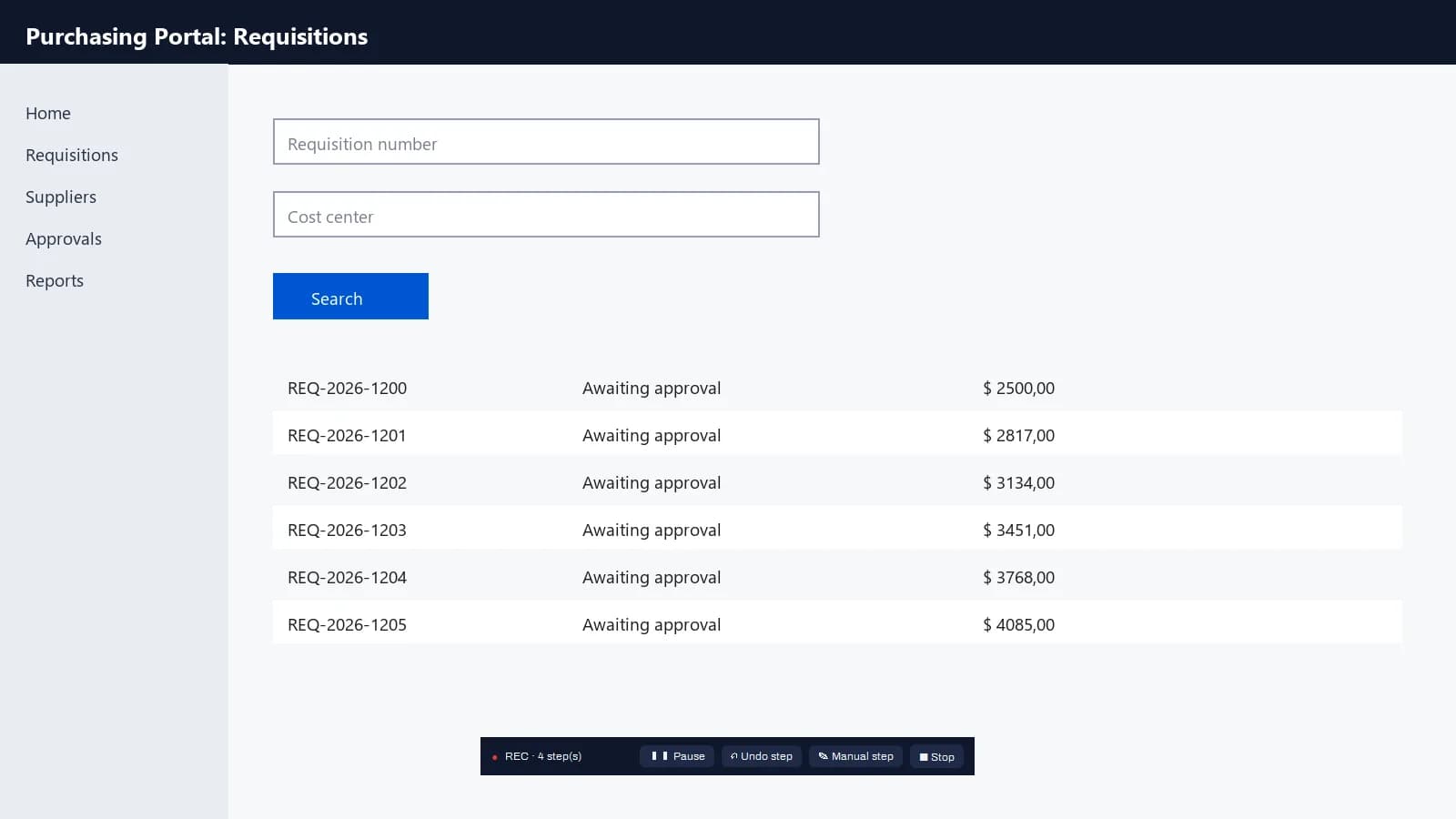
- Pause: actions during the pause do not become steps; the frame turns amber "PAUSED".
- Undo: drops the last captured step.
- Manual step: inserts an instruction you write yourself (e.g. "Check the result before moving on"), with a screenshot if you want one.
- Stop: ends the recording without restoring the REC window.
Important
Screenshots show the screen as it was. Prefer recording in a test environment, or review the images before distributing: password fields are covered automatically, but other sensitive data may show up.